How to Get Text from Photos and PDFs: OCR in Plain Words
What text recognition is, how a scan differs from a PDF with text, how to get a more accurate result and why privacy deserves attention.
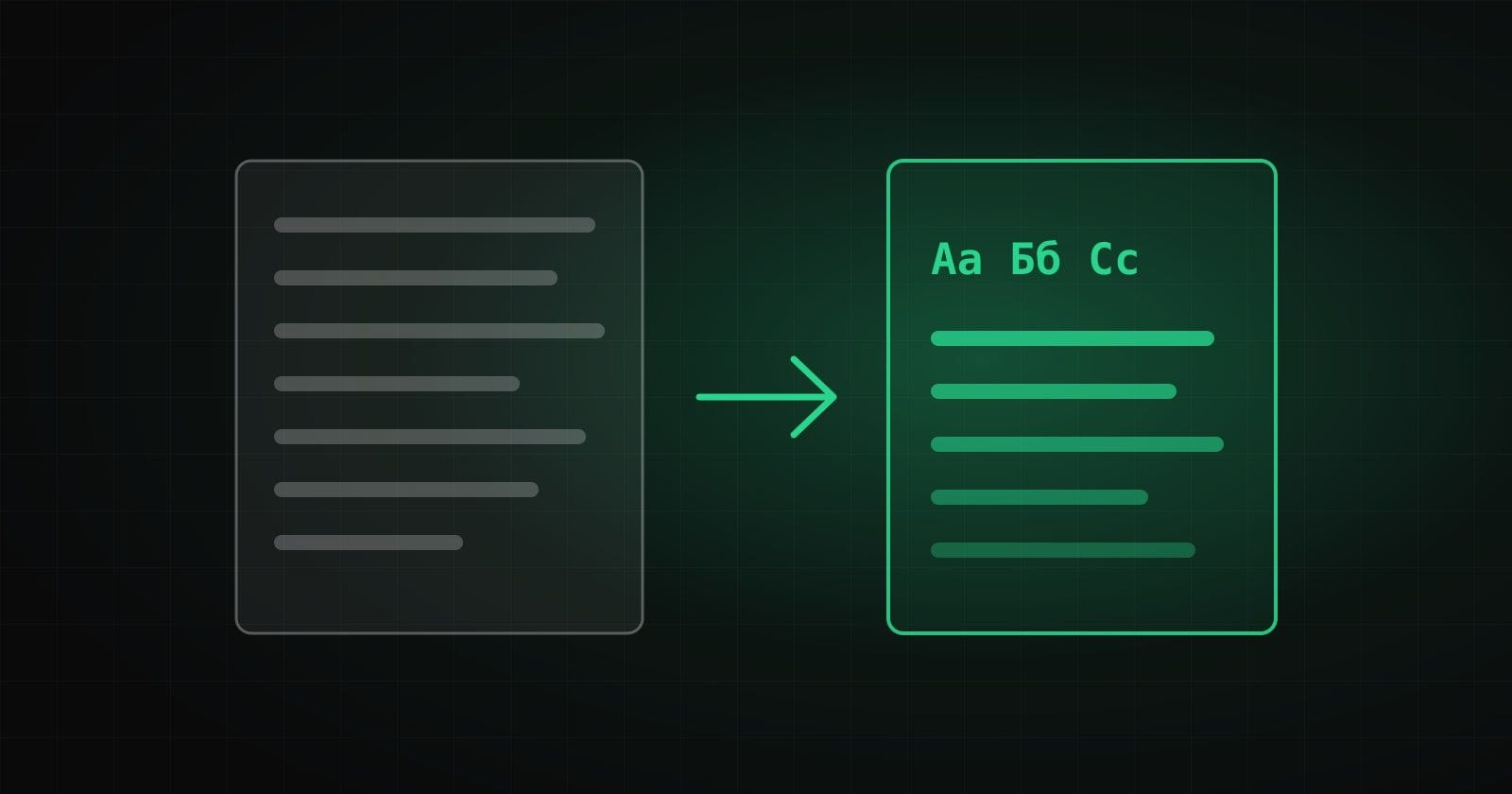
Text in a photo, a screenshot or a scan cannot be selected and copied: to a computer it is just a picture. Text recognition, or OCR, turns such images into ordinary text. Here is how it works and how to get a better result.
What OCR is
OCR (optical character recognition) is a technology that finds lines and letters in an image and turns them into characters. The result can be edited, searched, translated and pasted into other documents.
A scan or a PDF with text
Not every PDF needs recognition. Tell two cases apart:
- A PDF with a text layer. You can select the text with the mouse. It is better to take it straight from the file: it is faster and more accurate.
- A scan or a photo of a page. It is a picture, and the text in it has to be recognized.
A good tool checks this itself: it takes the text layer where there is one and recognizes only the pages that are pictures.
Seven tips for better accuracy
- Sharpness. A blurry photo gives mistakes. Shoot in focus and without shaking.
- Contrast. Dark text on a light background is recognized best.
- Straightness. A tilt of a few degrees is still fine, but strong skews and folds are not.
- Size. Small print is better enlarged: the engine reads very small letters poorly.
- Language. Be sure to choose the languages of the text: a wrong language spoils the result badly. For mixed documents you can choose several.
- Cleanliness. Glare, shadows and foreign objects in the photo add extra characters.
- Checking. Always verify numbers, names and addresses: that is where mistakes cost the most.
What OCR cannot do
General tools cope poorly with handwriting, complex tables, formulas and decorative fonts. Such tasks need specialized solutions.
Privacy
Documents often contain personal or commercial data. Many online services upload files to a server, and sometimes use third-party delivery networks for the engine itself. It is safer to choose a tool that works in the browser and sends nothing.
Try it
We built a free text recognition tool for images: it works with photos, screenshots (you can paste them with Ctrl+V) and PDFs, supports Ukrainian and seven more languages and shows progress and recognition confidence. The engine and the language models are served by our own site, so no third-party services are involved. Read how we tested it and what we fixed in the case study. If you need automatic processing of large volumes of documents, see AI engineering and process automation.
How we help with this
Services related to the topic of this article:
Frequently asked questions
How is a scanned PDF different from a PDF with text?
A PDF with a text layer lets you select and copy the text, so no recognition is needed. A scan is a picture of a page: the text in it has to be recognized.
Does OCR recognize handwriting?
General tools are meant for printed text. Handwriting is recognized much worse and needs specialized solutions.
Read next
 Tools and products
How to Clean HTML from Word and Google Docs Without Losing Formatting
Where the extra markup comes from when you copy text, why it hurts, what to keep and seven typical traps that break headings, lists and links.Read → Tools and products
Letter Case Converter: 6 Situations Where It Really Saves Time
From text typed with Caps Lock to variable names and page addresses: six everyday situations where changing case with one button saves time.Read → SEO and marketing
SEO-Friendly URLs: How to Create Page Addresses in Ukrainian and English
What human-readable URLs are, why a Latin slug beats Cyrillic, the transliteration rules and how not to lose traffic when changing addresses.Read →
Need advice on the topic?
Describe the task: we will suggest where to start and say honestly what you can skip.