Images · Free
Image Converter
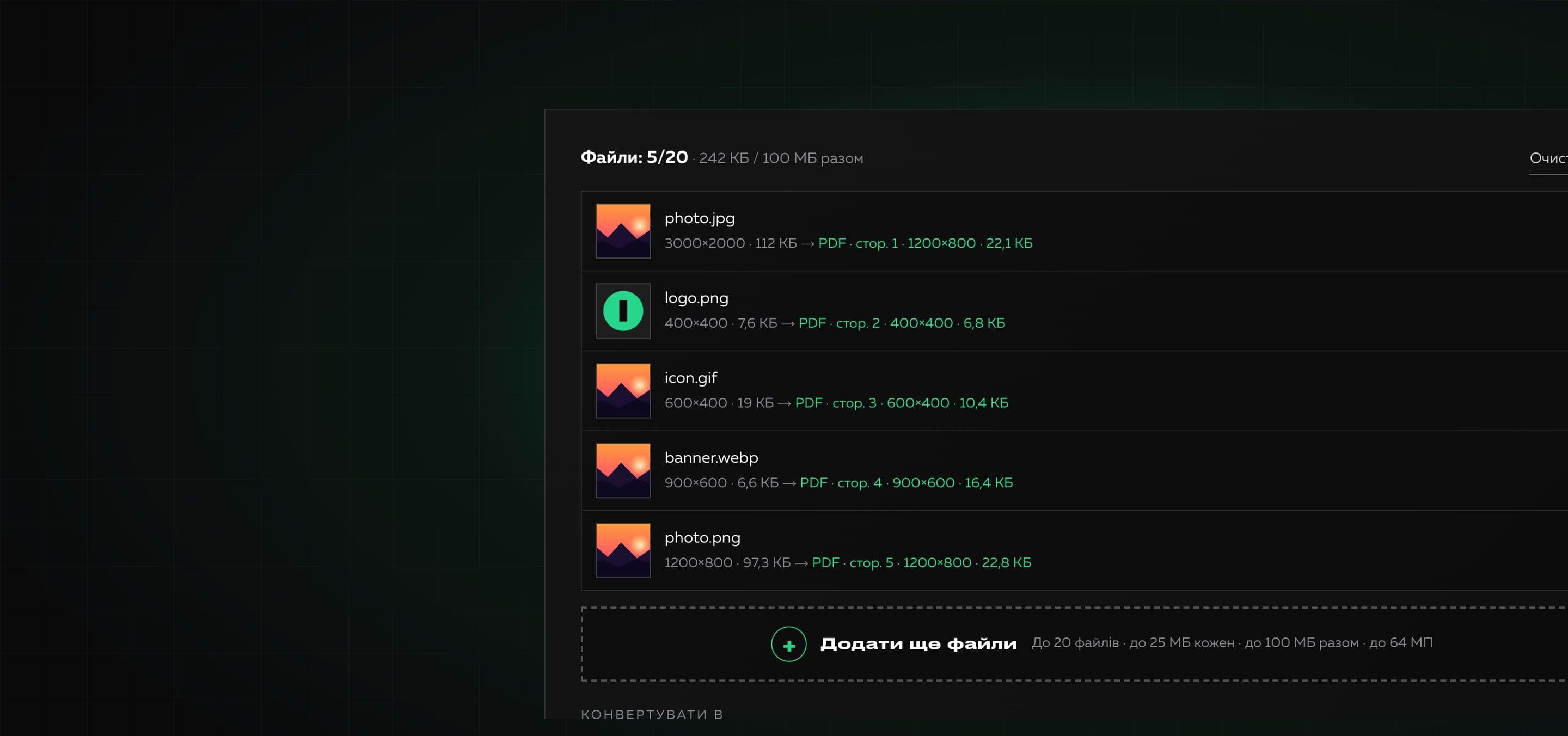
A free online image converter. Add files, choose a format and, if needed, size and quality, and download the result: as separate files, a ZIP archive or one PDF. Everything happens in your browser and files are not sent anywhere.
Files are processed in your browser and are not sent anywhere. Metadata (EXIF, GPS) is not carried into the result.
Different tasks need different formats: WebP makes website pages lighter, PNG keeps transparency, JPG suits photographs, GIF and BMP are sometimes required by old programs, and PDF is handy for gathering several images into one document: scans, photos of receipts or pages. The converter handles several images at once and lets you change their size and quality.
We made sure the results are honest: JPG, PNG and WebP are produced by the browser itself, while GIF, BMP and PDF are built by our own encoders, so the file extension always matches the content. To avoid overloading your device there are clear limits: up to 20 files at a time, up to 25 MB each and up to 100 MB in total.
Why it is useful
- 01
Files never leave the browser
Conversion runs on your device. Files are not uploaded to a server, and metadata (EXIF, GPS) is not carried into the result.
- 02
Real formats
Six output formats: JPG, PNG, WebP, GIF, BMP and PDF. No faking: a .gif file really is a GIF and a PDF is a real document.
- 03
One PDF from several images
Gather images into one PDF where each sits on its own page, or create a separate PDF for each. Page size like the image, A4 or Letter.
- 04
Size and quality under control
Set the width and height you need (fitting into the given box) and the quality for JPG, WebP and PDF. You immediately see how much space is saved.
- 05
Clear limits and errors
If a file is too large or will not open, the tool explains why and what to do instead of staying silent.
How to use it
- 01
Add files
Drop images into the area or choose them in a dialog. The limits are shown under the area.
- 02
Choose format and size
Pick the output format, the quality for JPG, WebP and PDF and, if needed, width and height.
- 03
Convert and download
Press “Convert”, then download each file separately, all of them as a ZIP archive or one PDF.
Where it helps
Optimizing images for a website
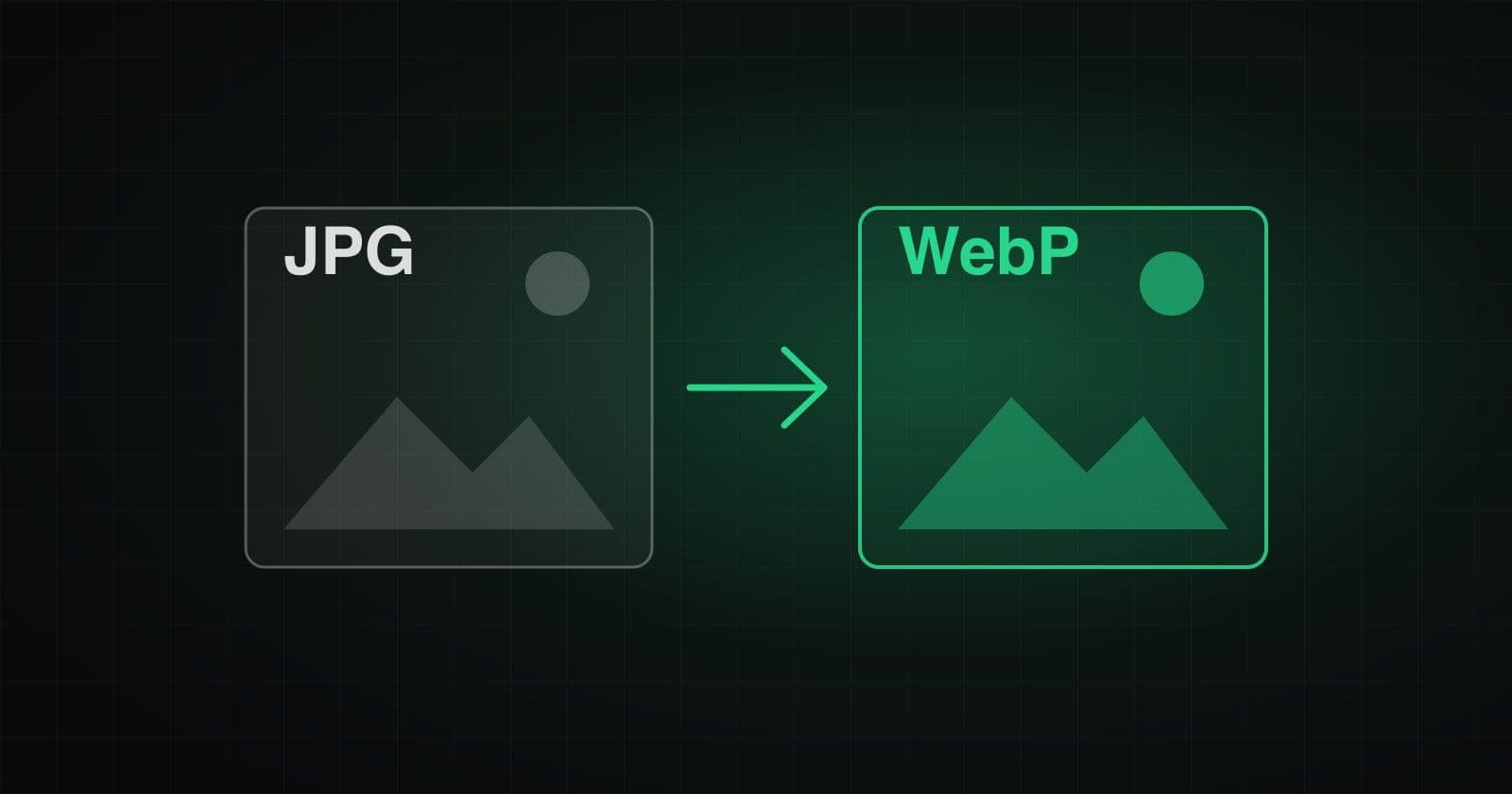
Turn photos into WebP of the right size: pages load faster and speed metrics improve.
Photos for forms and accounts
Many services limit file size. Reduce the size and quality so the image passes validation.
A document from photos or scans
Put several photos into one PDF on A4 pages with the right orientation and send it as one file.
Logos on a white background
A transparent PNG can be turned into a JPG or PDF: transparent areas are filled with white, not black.
The same size for a catalog
Bring all product images to the width you need in one pass.
How we built it
Read on the blog
Frequently asked questions
Is the converter free?
Yes. You can use it without payment and without signing up.
Are my files uploaded to a server?
No. Everything runs in your browser, files are not sent anywhere or stored. Metadata such as EXIF and GPS coordinates is not carried into the result.
What are the limits and why?
Up to 20 files at a time, up to 25 MB each, up to 100 MB in total; a source picture of up to 64 megapixels and a result of up to 36 megapixels (16 for GIF), and the page data of one PDF up to 100 MB. Processing runs on your device and uses its memory, so the limits keep the tab from freezing.
How does conversion to PDF work?
Every image becomes a page. You can gather all files into one PDF or create a separate PDF for each. Page size: like the image, A4 or Letter; for A4 and Letter the orientation follows the picture and the margins are half an inch. The image is embedded as a JPEG, so the document size depends on the chosen quality.
Why will HEIC not open?
Most browsers cannot open this format (Safari supports it). Save the photo as JPG or PNG or open the page in Safari.
What happens to transparency?
PNG and WebP keep transparency. In JPG, BMP and PDF transparent areas are filled with white, and GIF supports only full transparency with no semi-transparent edges.
What happens to an animated GIF?
It becomes a still image from the first frame. The animation is not preserved.
Which quality should I choose for JPG, WebP and PDF?
Values of 75–85 usually give a good balance between look and size. For important images, raise the quality and compare the result.
Need your own tool for your team?
We build useful online tools and internal services: from idea and design to launch. Tell us what routine is worth removing.